Record a take
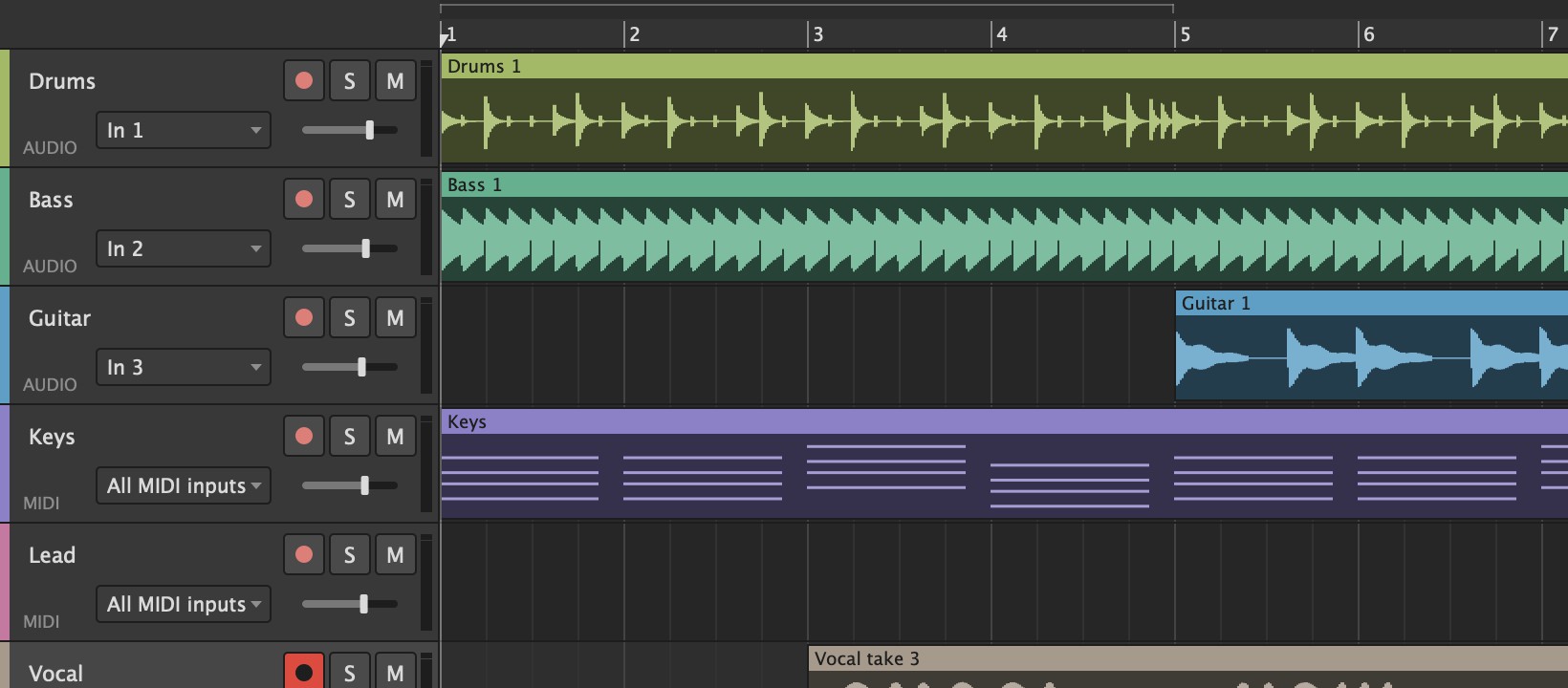
- Pick the track's input in its header: an input of your interface (In 1, In 2, or a stereo pair like In 1/2) for an audio track, or a MIDI input for a MIDI track.
- Arm the track with its round button. To record several tracks at once, arm them all.
- Press R, or the record button. Lathe records from the start marker.
- Press Space (or Stop) to stop. The take is a new clip on each armed track.
If nothing is armed, record arms the selected track. A new take replaces whatever was underneath it on that track, and Undo (Cmd/Ctrl+Z) brings the old material back. Recording while the song is playing punches in at once.
Count-in
Click the arrow next to Click (or right-click the record button) and choose 1, 2 or 4 bars. When it's on, the record button shows the number of bars.
Pressing record from a stop then clicks that many bars and records from the downbeat. The count-in clicks with an accent on each downbeat, whether or not the metronome is on. The counter shows the beats left, and armed inputs are monitored, so you can play along. Stop (or record again) during the count-in cancels it.
Hearing yourself
Each track's monitoring is set in its mixer strip:
- Auto (the default): you hear the input while the track is armed.
- In: you always hear the input, armed or not.
- Off: you never hear it through Lathe. Use this with your interface's direct monitoring, which has no latency. The 8-Input Tracking template sets every track to Off.
To give the players their own headphone mix, see Monitor mixes.
Sample rate
New projects record at 48 kHz, unless you change New projects record at in Options > Audio / MIDI Settings: 44.1, 48, 88.2 or 96 kHz, or whatever the interface is set to. 96 kHz files are twice the size, which adds up in Lathe Cloud.
A project you open always runs at its own rate (Lathe switches the interface to it). You can still change the rate for the open project in the same window.
Latency
Takes are shifted by the round-trip latency the driver reports, plus any plug-in latency, so they land in time.
If your setup still lands early or late, adjust Recording offset in Settings. To measure it, connect a cable from an output of your interface back into an input, and record the click.
MIDI
MIDI tracks record notes, controllers (CC) and pitch bend, from any MIDI input or the one you pick. To play a hardware synth from a MIDI track, set MIDI to in its mixer strip, for example to your interface's MIDI OUT.
Record one track into another
Record an instrument with its effects, played live, as audio:
- Put the instrument and any effects on a MIDI track. Leave it unarmed. It doesn't need clips; a note generator that plays by itself works too.
- On an audio track, open the input box and pick that track under From a track (for example "From MIDI 1").
- Arm the audio track. The MIDI track now plays your keyboard live, and you hear it through the audio track (not twice), so the audio track's fader sets how loud it is.
- Record. The audio track gets what the instrument played after its plug-ins and EQ (before its fader, mute and solo), in stereo, lined up the way a MIDI recording is.
Arm the MIDI track too if you also want the notes. Any audio or MIDI track can be the source, so you can resample an audio track through its effects the same way.
Record what a note generator plays
For an arpeggiator, Random Notes or another plug-in that makes notes:
- On its own track: put the generator before the instrument on a MIDI track, arm it, and record. Lathe records the notes the generator hands to the instrument (not what you play into it), exactly in time. Afterwards, bypass the generator (the status bar reminds you), or it plays along with the new clip.
- From a track: on another MIDI track, pick the generator's track under From a track in the input box, put your instrument there, arm it and record. That track plays and records the generator's notes live. The generator's track stays as it is, so nothing doubles on playback.
Tuning up
Put Lathe's Tuner on the track first: see Instruments and effects.