Installing
Download Lathe from getlathe.app. It's free, for Mac, Windows and Linux.
- Mac: open the zip, drag Lathe to your Applications folder, and open it from there. If you open it straight from Downloads, macOS runs it from a temporary copy where updates can't install, and Lathe says so.
- Windows: right-click the zip, choose Extract All, then open
Lathe.exein the folder it makes. Opened from inside the zip, Lathe runs without the programs that come with it (plug-in checks, updates, the AI assistant), and it says so. If Windows warns about a new download, choose More info, then Run anyway. - Linux: extract it, keep the files together, and run
Lathefrom that folder.
The first time it opens
Lathe opens a short song, Welcome to Lathe, made with its own instruments. Press Space to hear it. The hint at the bottom of the window comes back until you do.
It also asks one question: whether it may share a few anonymous milestones, like the first time you record something, so we can see where new people get stuck.
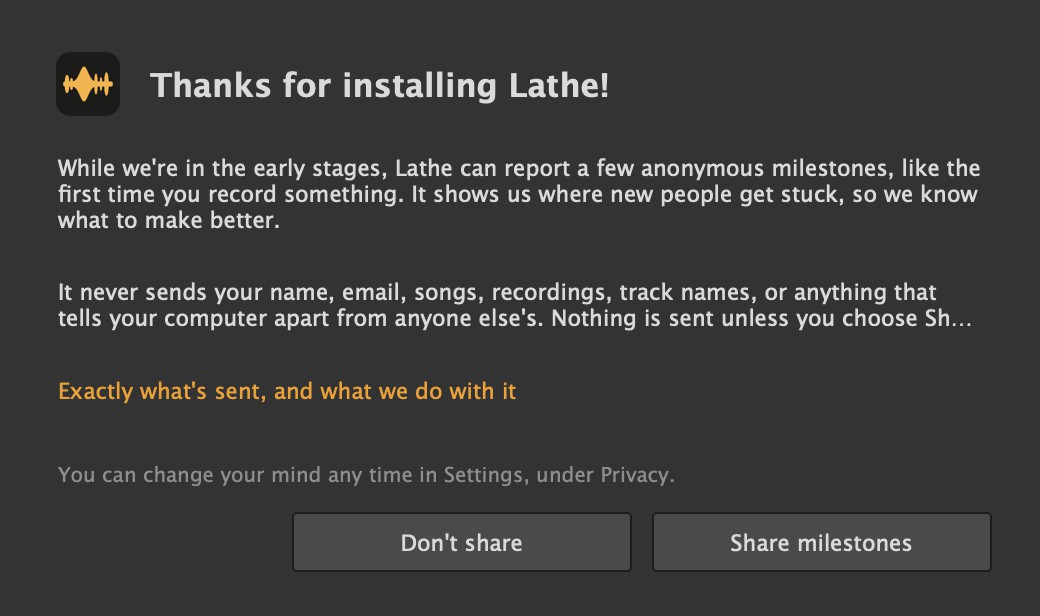
Each milestone is sent once, with Lathe's version and Mac, Windows or Linux, and nothing else: no ID, name, song or track. Don't share (or closing the window) sends nothing, and Lathe doesn't ask again. Updating Lathe never shows the question; it only appears when Lathe has no settings yet. Change it any time in Settings, under Privacy. The full list, the exact message and what's kept are on getlathe.app/privacy.
Your audio interface
Lathe picks your audio interface for you: the device with the most inputs that can also play sound. It uses ASIO on Windows and CoreAudio on the Mac, a 128-sample buffer, and all channels on.
- Devices that pass audio between apps (for screen recording, video calls or routing) are never picked, since they'd play nothing you can hear.
- If it picked the wrong one, click the device name at the top right, or choose Options > Audio / MIDI Settings. Your choice is saved and restored every time Lathe opens.
- If the interface is unplugged while Lathe runs, Lathe keeps trying to reconnect to it.

The buffer size trades latency for headroom: see Performance for how to choose.
Your plug-ins
Lathe has its own synths, drums and effects (see Instruments and effects), so you can make a song before you install anything. It also hosts VST3 plug-ins.
On the first launch Lathe scans the standard VST3 folders in the background, and you can keep working while it does.
- Each plug-in is opened by a small helper program,
LatheScanner, which sits next to Lathe. If a plug-in crashes or hangs (more than a minute) while it's checked, only the helper dies: Lathe skips that plug-in and says so in the status bar. - Settings lists the skipped plug-ins and has Retry skipped plug-ins for after you update one. VCV Rack 2's VST3 is a known example: it crashes when unloaded straight after loading.
- To use a plug-in you've just installed, choose Options > Scan for New Plug-ins.
If a plug-in scans fine but crashes while you work, run it separately: see Plug-ins that crash.
Templates
A template is a session ready to record into: tracks, inputs, plug-ins and sends, with no clips. Lathe makes two in Documents/Lathe/Templates:
- Basic: two audio tracks (inputs 1 and 2), one MIDI track, and two returns.
- 8-Input Tracking: eight mono tracks on inputs 1 to 8, a MIDI track and two returns. Monitoring is Off on these tracks, so you hear yourself through your interface's direct monitoring with no latency.
Start a song from one with File > New from Template. To make your own, set up a session the way you like it, then choose File > Save as Template.
To delete a template, built-in ones too, use File > New from Template > Delete Template. Restore Built-in Templates brings Basic and 8-Input Tracking back.
If Lathe crashes
Lathe writes a short report when it crashes. The next time it opens, it shows you the report and asks whether to send it.
- The report holds Lathe's version, your system, how long Lathe was open and where in Lathe's code it stopped. Nothing from your songs: no names, paths or account.
- Don't send deletes it. Remember my answer makes it always send, or never.
- Change it in Settings, under Privacy. Details are on getlathe.app/privacy.
If you were working on a saved song, Lathe offers to recover your unsaved changes the next time you open it: see Project files.
Next
Take a tour of the window, then record or write some notes.