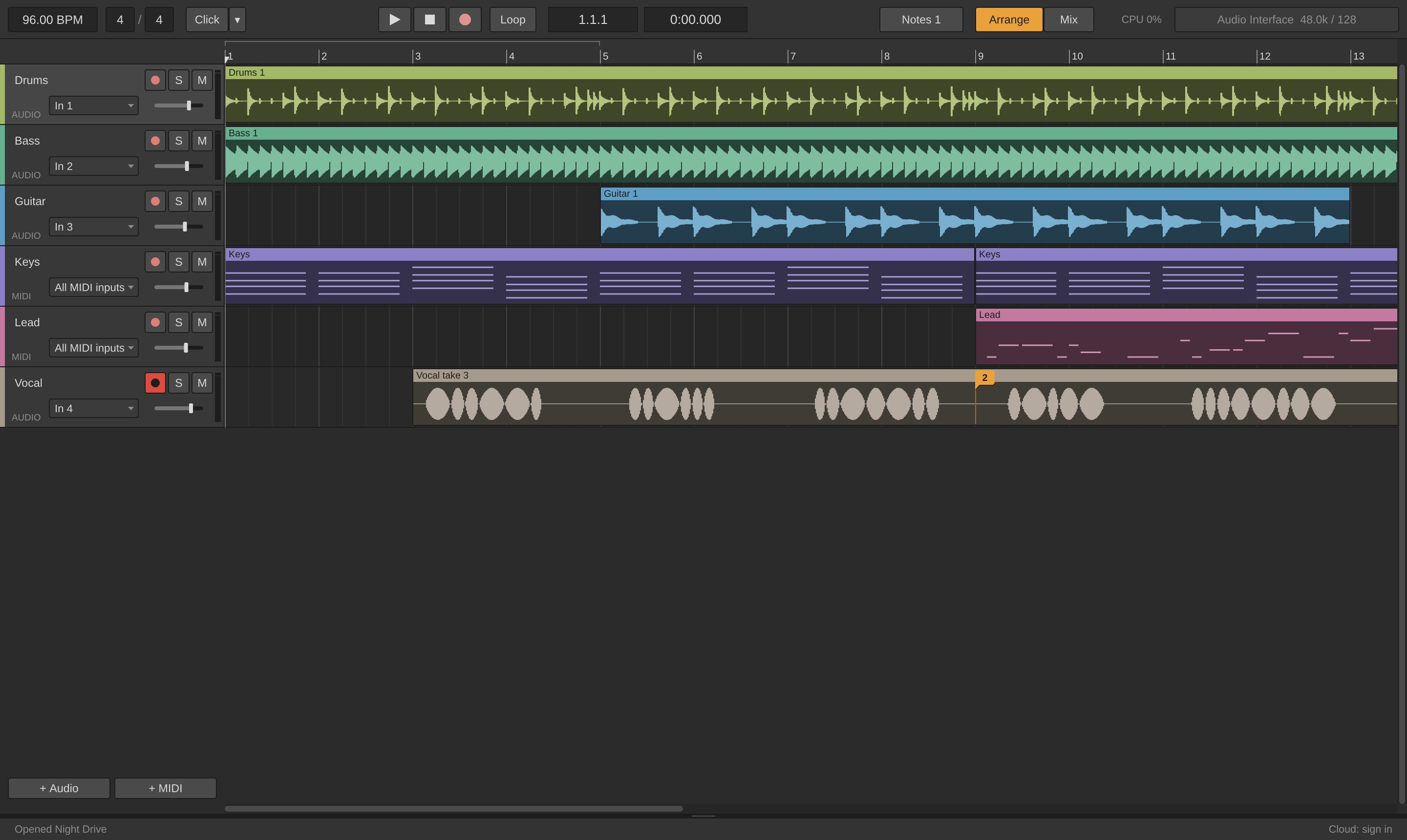
Tracks
There are three kinds of track:
- Audio tracks record and play audio: a voice, a guitar, a loop you imported.
- MIDI tracks hold notes, which play an instrument in the track's device panel (or a hardware synth).
- Returns hold shared effects, like a reverb several tracks send to. They live in the mixer. See Mixing.
Add one with + Audio or + MIDI under the tracks, by right-clicking empty space in the arrangement, or with the keys:
| Cmd/Ctrl+T | Add an audio track |
| Cmd/Ctrl+Shift+T | Add a MIDI track |
| Cmd/Ctrl+Alt+T | Add a return |
Right-click a track's name for Rename..., Colour, Group, Move up and Move down, Export This Track... (see Exporting) and Delete track. Double-click a name to rename it in place: Return keeps the new name, Escape cancels.
Click a track's name to select it. Cmd/Ctrl-click or Shift-click selects several.
Clips
A clip is a stretch of audio or notes on a track. Recording makes one, so does importing a file (audio or MIDI), and so does writing notes.
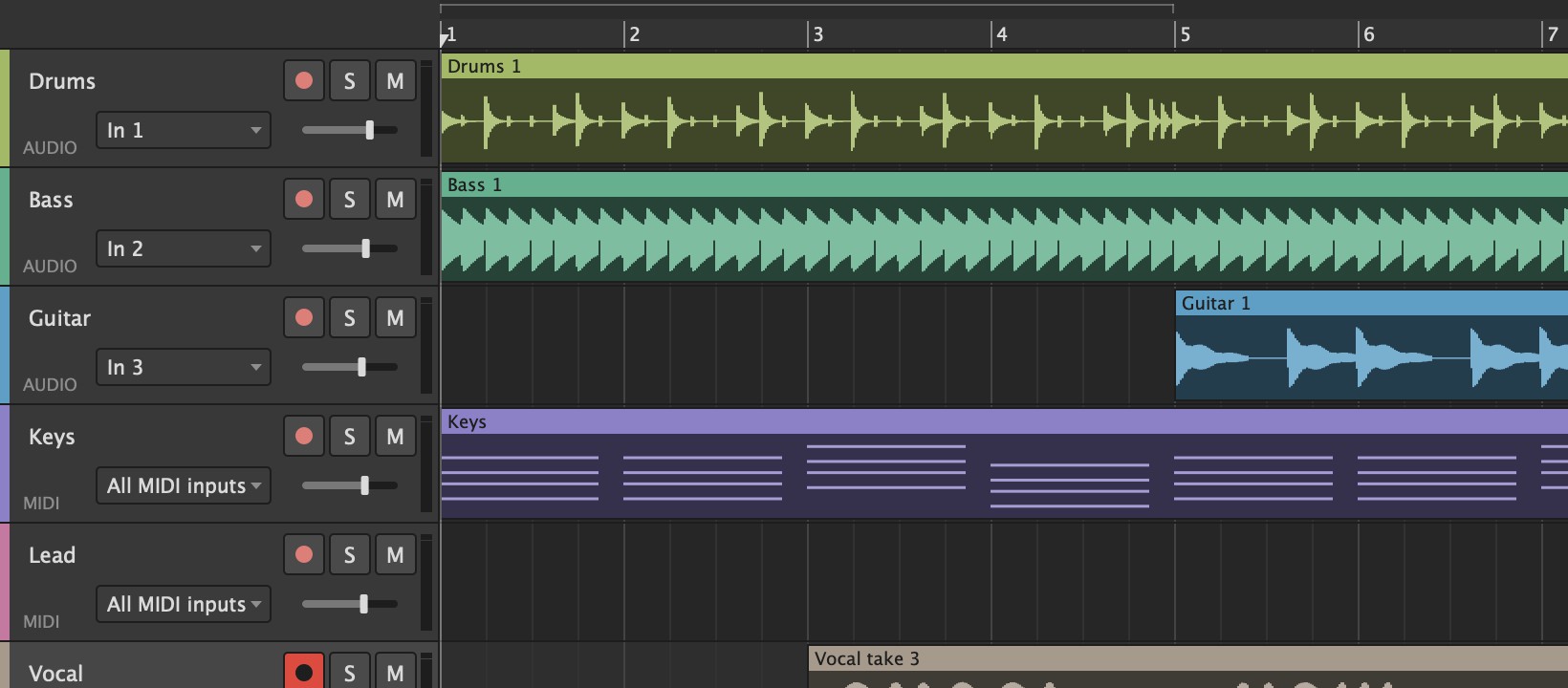
Selecting
- Click a clip to select it.
- Cmd/Ctrl-click or Shift-click adds a clip to the selection, or takes it out.
- Drag on empty lane space to draw a box around clips. Drag to an edge of the arrangement and it scrolls, so the box can reach clips you can't see yet. Hold Cmd/Ctrl or Shift to add to what's selected.
- Cmd/Ctrl+A selects every clip.
Moving and trimming
- Drag a clip to move it. It snaps to the grid; hold Alt while you drag to place it freely.
- Drag it up or down onto another track of the same kind (audio onto audio, MIDI onto MIDI).
- With several clips selected, drag any of them and they all move together, up or down too if each lands on a track of its own kind.
- Drag a clip's left or right edge to trim it: the hidden part is kept, so you can drag it back out.
- A clip you drop over another replaces what was underneath in that time. Undo (Cmd/Ctrl+Z) brings it back.
Copy, paste and duplicate
Paste goes to the start marker on the selected track: click an empty spot in a lane to put the marker there, then paste.
| Cmd/Ctrl+C | Copy the selected clips |
| Cmd/Ctrl+X | Cut them |
| Cmd/Ctrl+V | Paste at the start marker. Clips copied from several tracks keep their layout, going down from the selected track. |
| Cmd/Ctrl+D | Duplicate the selected clips, right after themselves |
| Delete | Delete the selected clips |
Split and join
- Cmd/Ctrl+E splits the selected clips at the start marker (or right-click a clip > Split at start marker).
- Cmd/Ctrl+J joins the selected clips on each track into one clip. Audio clips are rendered to a new file; MIDI clips simply become one clip with all their notes.
More on a clip's menu
Right-click a clip for Rename..., Copy, Paste at Start Marker, Duplicate, Join, Split, Add Comment Here... and Delete. An audio clip also has Clip gain (+6 to -12 dB) and Show file. A MIDI clip has Edit notes... and Export as MIDI File....
Importing audio
Drag audio files (WAV, AIFF, FLAC, MP3 or Ogg) onto the arrangement, or choose File > Import Audio... (Cmd/Ctrl+I). Dropped on an audio track, a file lands where you dropped it. From the menu, it goes on the selected track at the start marker.
The loop, the start marker and the playhead
- The start marker is where Play starts and Paste goes. Click empty lane space to move it there.
- The loop: drag in the top strip of the ruler to set it, then press L (or Loop) to turn it on. Lathe plays it over and over, and Compare and the AI assistant's listening use it too.
- Stop twice goes back to the start of the song.
- Follow (F) scrolls the arrangement to keep the playhead in view while the song plays.
Zoom and scroll
- Cmd/Ctrl+scroll zooms in and out.
- Shift+scroll scrolls sideways.
- The scroll wheel scrolls the track list wherever the pointer is over the arrangement.
Track groups
A group keeps tracks that belong together (the drum mics, the backing vocals) under one header, so you can arm, solo, mute, fold away and process them together.
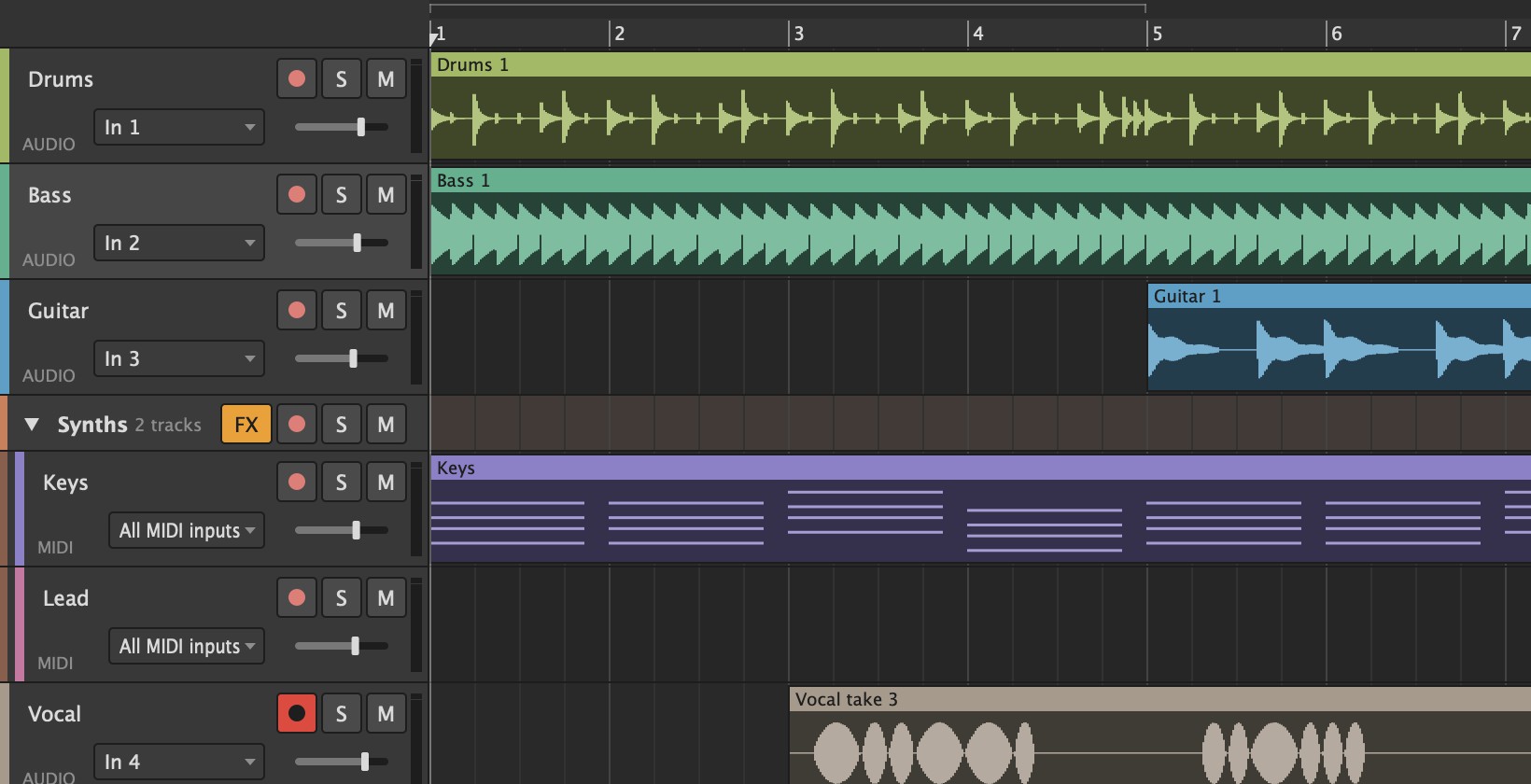
Select the tracks (Cmd/Ctrl-click or Shift-click their names), then press Cmd/Ctrl+G, or right-click a name > Group. The group's header row has:
- Arm, which arms every track in the group, or disarms them all if they're all armed.
- S and M, which solo or mute the whole group on top of each track's own buttons. The members' own states are kept, so un-muting the group brings back exactly what was there before.
- The triangle, which folds the group to its header to save space on a big session.
- FX, which gives the group its own bus: a channel every track in the group plays through. See Group buses.
Click a group's header to select all its tracks. Double-click its name to rename it. Right-click it for Colour, Arm all, Collapse, Export This Group... and Ungroup (Cmd/Ctrl+Shift+G), which keeps the tracks. To move a track into a group, or out of one, right-click its name > Group.
Groups and group buses are saved in projects and templates.
Comments
Leave a comment at a moment in the song: right-click the lane (or a clip) > Add Comment Here.... It shows as a speech bubble with the number of messages in the thread. See Lathe Cloud for conversations with the people you share the song with.
Undo
Almost everything is one step you can take back with Cmd/Ctrl+Z (redo is Cmd/Ctrl+Shift+Z): clips and notes, tracks, returns, groups, plug-ins, routing, sends, names, tempo, and fader, pan, send level and EQ moves. Undo History shows every step: see Compare and Undo History.