A MIDI track
A MIDI track's notes play the instrument in its device panel: one of Lathe's own (see Instruments and effects) or a VST3 instrument. A note generator, like an arpeggiator or Random Notes, goes before the instrument it drives.
To play a hardware synth instead, set MIDI to in the track's mixer strip to the MIDI output it's connected to.
To get notes onto a track you can record them (Recording), draw them in the piano roll, import a MIDI file, or ask the AI assistant to write them.
The piano roll
Double-click a MIDI clip (or right-click it > Edit notes...) to open it. Escape closes it.
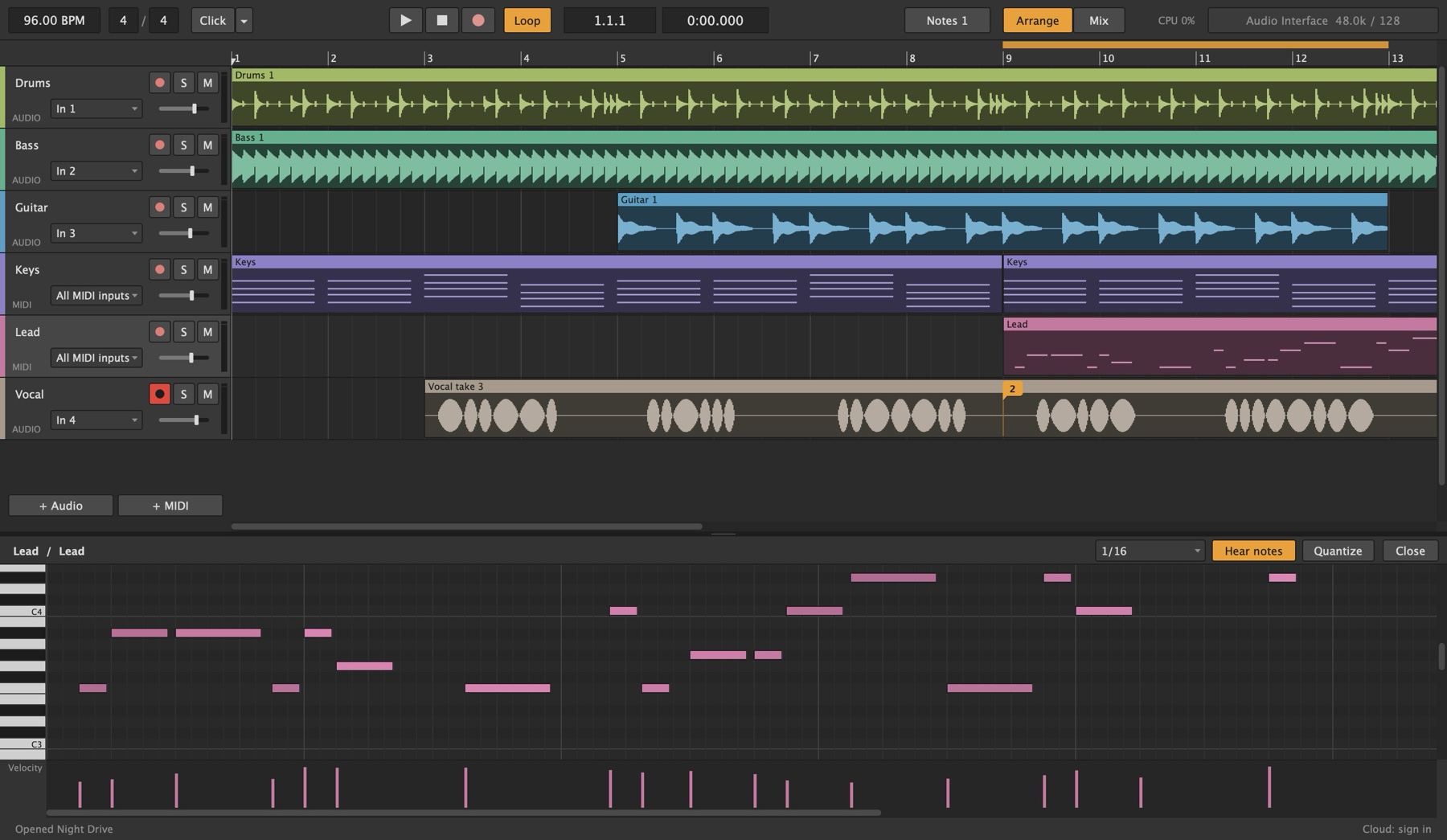
Writing and editing notes
| Double-click | Add a note, or delete the one you clicked |
| Drag a note | Move it |
| Drag a note's end | Make it longer or shorter |
| Drag on empty space | Select the notes in the box |
| Cmd/Ctrl+A | Select every note in the clip |
| ↑ ↓ | Move the selected notes up or down a semitone. With Shift, an octave. |
| Q | Quantize: snap the selected notes (or all of them) to the grid |
| Delete | Delete the selected notes |
| Alt while dragging | Ignore the grid |
The grid in the toolbar sets the step for drawing, moving and quantizing: 1/4, 1/8, 1/16, 1/32, or 1/8 and 1/16 triplets.
Velocity
The lane under the notes shows how hard each note is played. Drag a bar up or down to change it. Louder notes are drawn brighter.
Hearing notes
Click or drag the keyboard on the left to hear a pitch. Notes also sound through the track's instrument as you add, grab, drag and transpose them. Hear notes in the toolbar turns that off.
Notes are named with C3 as middle C.
MIDI files
Importing
Drag a MIDI file (.mid) onto the arrangement, or choose File > Import MIDI File...:
- Onto a MIDI track: the whole file becomes one clip on that track, where you dropped it (or, from the menu, at the start marker on the selected track). Anything already there in those bars is replaced. This suits a drum groove from a library, even one spread over several tracks of the file. Several files dropped together play one after another.
- Anywhere else: each part of the file (a track of it, or a channel of a one-track file) gets its own new MIDI track, named after it. New tracks have no instrument yet: add one to hear them.
Clips run to the end of the bar their last note ends in. Notes keep their place in beats, so the file plays at the song's tempo; if the file was written at another tempo, the status bar says so. Notes, velocities, controllers, pitch bend and aftertouch come in. An import is one undo step.
Exporting
To take MIDI the other way, out to another program or to someone else:
- File > Export MIDI File... saves every MIDI track that has notes, one track each in the file, from the start of the song.
- Right-click a MIDI clip > Export as MIDI File... saves that clip, or every selected MIDI clip, from the bar the first one starts in.
- Drag MIDI clips out of Lathe's window, to the Finder or Explorer or into another program, to drop them there as a .mid file. The clips stay where they were.
The file has the song's tempo and time signature, each track's name and MIDI channel, and the notes, controllers and pitch bend the clips play. A clip's hidden notes past its end are left out. A MIDI file holds notes, not sound: to send the sound, export audio.
Writing parts in text
The AI assistant writes and reads parts in a short text form, a drum grid or a line of notes per bar. You can read the same form: see Note notation.